
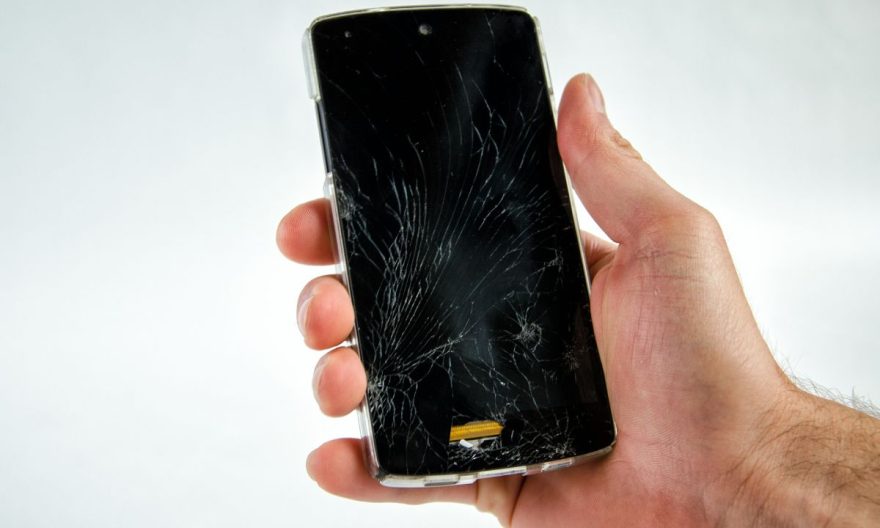
A broken screen on your Samsung can be a real headache, especially when you need to recover important data but USB debugging has not been enabled. Fortunately, there are several solutions to recover your data even if your device’s screen is unusable. In this article, we offer different methods to access your files without having to enable USB debugging beforehand, to help you recover photos, videos, contacts, and other valuable information.
Use a USB cable and a keyboard/mouse via an OTG adapter
A simple and effective method to recover data without needing a functional screen is to use a USB cable with an OTG (On-The-Go) adapter. This solution allows you to connect a mouse or keyboard to your phone, giving you the ability to navigate your device without having to interact with the broken touchscreen.
- Get an OTG adapter: An OTG adapter will allow you to connect a USB keyboard or mouse to your Samsung phone via the charging port (USB-C or Micro-USB, depending on the model).
- Connect a device: Plug the mouse (or keyboard) into the OTG adapter, then connect it to your Samsung. A virtual mouse or keyboard will appear on your device, allowing you to navigate through the Android interface as if you were using a computer.
- Access your files: Once you have a functional control device (keyboard or mouse), you can access your photos, videos, and other data via your phone’s file explorer.
- Back up your data: You can then transfer your files to another device, such as a computer, by connecting your Samsung to it via a standard USB cable.
This method is ideal if the screen is completely unusable but you can still interact with the device using an external device.
See also: Where is your Samsung clipboard hidden and how to use it?
Use an external screen via an HDMI cable
If you have a TV or an external screen compatible with your Samsung, you can also consider connecting your phone to this screen. Some Samsung models are compatible with MHL mode or Slimport, allowing you to connect the phone to a screen via an HDMI cable.
- Check MHL/Slimport compatibility: Make sure your Samsung model supports MHL or Slimport functionality. If so, you will need a suitable cable.
- Connect the phone to the screen: Plug the MHL adapter (if necessary) into your phone’s USB port, then connect the other end of the cable to an HDMI port on your TV or monitor.
- Use your external screen: Once the phone is connected to the external screen, you will be able to see your Samsung’s interface on the TV or monitor screen. Use the mouse, keyboard, or touchscreen (if the screen is responsive) to navigate and recover your data.
- Transfer your files: You can transfer your files in the same way as if you were using your device normally, by saving them to a computer or another external storage device.
Recover data via Google Drive or a cloud service
If you have already set up automatic backup via Google Drive or another cloud service, your data may already be stored online. This solution is particularly useful if you have enabled the backup of photos, contacts, and other files to your Google account before the screen broke.
- Access your Google Drive: Open a web browser on your PC or another device and log in to your Google account (the same account used on your Samsung phone).
- Access your data: You will be able to view your photos, contacts, and other files saved on Google Drive.
- Download or sync files: If you have specific files to recover, you can download them to your PC or sync them with another device.
Additionally, Google Photos and Google Contacts often automatically back up your important data, providing you with an easy way to access your information without needing your device’s screen.
Use data recovery software
If the previous solutions do not suit your situation, or if you do not wish to use external devices, you can try data recovery software to retrieve your files without needing a functional screen.
There are several third-party programs, such as Dr.Fone, iMobie PhoneRescue, or FoneLab, that can help you recover files from a Samsung device with a broken screen, even without USB debugging enabled. These software offer a user-friendly interface and allow you to recover data from your Android device using a PC.
- Download and install the software: Choose a reliable recovery program, then install it on your PC.
- Connect your Samsung to your PC: Plug your phone into the computer via a USB cable. The program should automatically detect the device.
- Select the files to recover: After launching the program, you will be able to choose the types of files you want to recover (photos, messages, contacts, etc.).
- Recover your data: Follow the instructions to recover your files and save them to your PC or another device.