
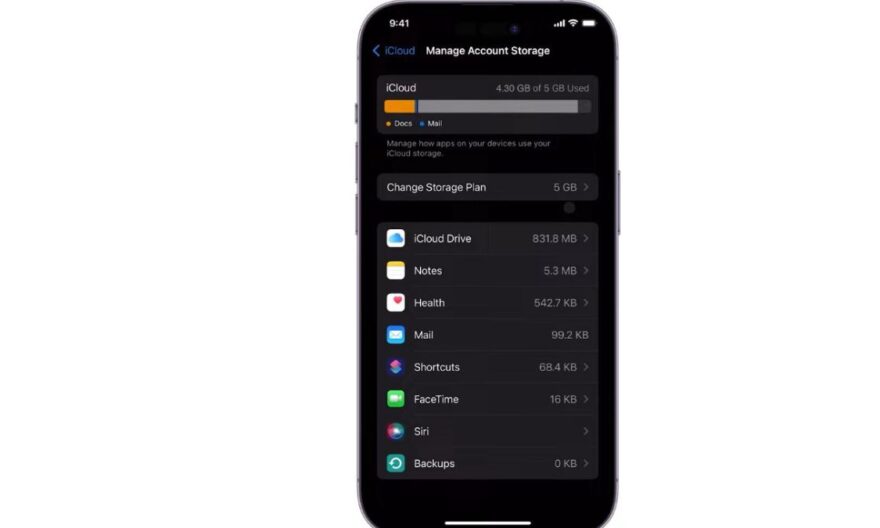
Deleting a file in iCloud Drive seems simple. However, some users notice that the files still appear on their iPhone despite being deleted. This situation can be surprising and cause confusion, especially when trying to free up space or organize documents. Several mechanisms integrated into iOS and iCloud can explain this apparent contradiction.
How does iCloud Drive synchronize files?
iCloud Drive is designed to keep your files up to date on all your Apple devices. This synchronization relies on several mechanisms:
Storage and synchronization
When you delete a file on iCloud.com or on another connected device:
• iCloud sends a deletion signal to all connected devices
• The changes are recorded in the recently deleted folder for a period of 30 days
• Devices may temporarily display the file until synchronization is complete
This logic protects deleted files from accidental deletions but can give the impression that the file is still present.
Synchronization delays
iCloud synchronization is not instantaneous in all cases:
• Large or numerous files may take several minutes or hours to disappear from all devices
• An unstable or weak Wi-Fi connection slows down the update on the iPhone
• If the iPhone is in power-saving mode, synchronization may be temporarily suspended
Thus, a file may remain visible locally even if it has been deleted in the cloud.
Why do deleted files remain visible on iPhone?
Several technical or configuration reasons can explain this phenomenon.
Recently deleted folder
iOS keeps deleted files for 30 days in the Recently Deleted folder.
• Files remain accessible during this period
• It is possible to restore them before permanent deletion
• On iPhone, the file may appear in the Files app with a small badge indicating its presence in this folder
This feature is designed for data security but can be confusing.
Remaining local storage
Even after deletion in iCloud, some files remain stored locally on the iPhone:
• iOS keeps temporary copies to speed up the opening of recent files
• Apps like Pages, Numbers, or Keynote may store files in cache
• These files may be visible until the system frees up space or completes synchronization
The file is therefore not actually present in iCloud, but it may appear in the app.
Synchronization issues
Some issues prevent effective deletion:
• Intermittent or slow Internet connection
• iOS bugs or temporary conflict in the iCloud account
• Errors during storage update on the iPhone
In these cases, the file remains displayed until complete synchronization is finished.
Solutions to permanently delete files
There are several methods to ensure that files disappear from the iPhone and iCloud.
Check the recently deleted folder
For a recently deleted file:
- Open the Files app
- Go to Browse > iCloud Drive > Recently Deleted
- Select the file and choose Delete Permanently
This action deletes the file from all connected devices and frees up the corresponding space.
Restart the iPhone
A restart can resolve synchronization issues:
• Close all apps
• Restart the device
• Wait for the iPhone to reconnect to iCloud and update the files
After this step, the deleted files should disappear.
Check the connection and storage
A stable connection is essential:
• Connect to a fast and reliable Wi-Fi network
• Ensure the iPhone has enough space to synchronize changes
• Open Settings > [Name] > iCloud > iCloud Drive to ensure synchronization is enabled
These actions confirm that all changes are transmitted to the cloud.
Delete via iCloud.com
If the file remains displayed on the iPhone:
- Access iCloud.com from a computer
- Open iCloud Drive
- Delete the file and check that it disappears from the recently deleted folder
Deleting from the site ensures that the file is removed from the server and reflects on all devices.