
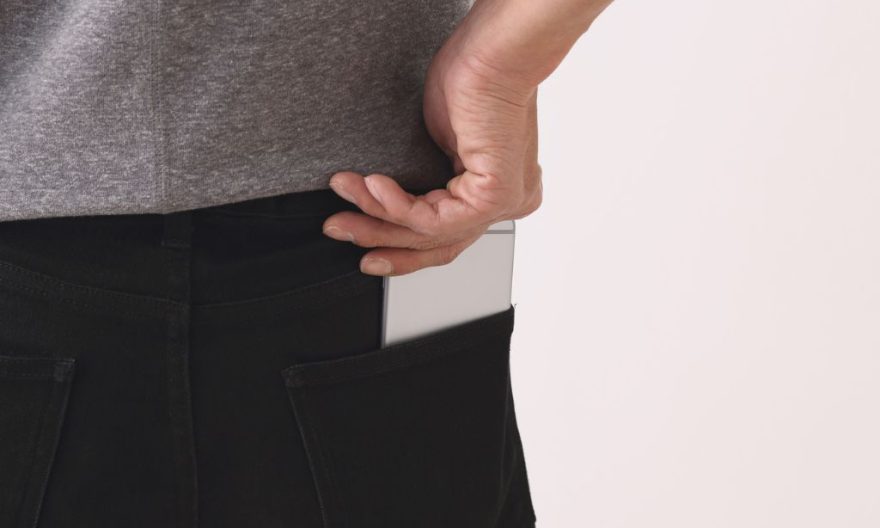
Pocket mode is a feature present on many smartphones, including OnePlus devices, which prevents accidental activation of certain options when the phone is in a pocket or bag. This system detects that the device is in a confined space and locks the screen to avoid unintentional interactions. For some people, this feature is very useful, but others may find it too sensitive or annoying. If you want to disable this option, here is a detailed guide explaining how to proceed.
What is pocket mode and how does it work?
Pocket mode is designed to disable certain functions of your phone when it is placed in a closed environment, such as a pocket, handbag, or backpack. When the phone detects unintentional pressure on its screen, like when it comes into contact with objects in your pocket, it prevents actions such as calls or notifications from being triggered without reason.
This function relies on detecting movements and pressures on the screen. The phone uses internal sensors to detect when the screen is covered or in contact with other surfaces. Once this contact is detected, the phone automatically disables certain features to prevent accidental manipulation. If you have ever found your phone activated unpredictably while it was in your pocket, it’s probably pocket mode that is responsible.
Why disable pocket mode on your OnePlus?
Although pocket mode can be very practical for some, there are several reasons why you might want to disable it. Some people find the detection too sensitive, which can prevent legitimate actions. For example, if you want to answer a call or check a notification quickly while having your phone in your pocket, pocket mode can make this task more complicated.
Moreover, if you often use apps or specific features that require interaction with the screen, the presence of pocket mode can become a hindrance. Additionally, some users find that this feature makes their phone too limited in certain situations where they are not in a closed environment, like a bag. If these inconveniences concern you, disabling pocket mode could be the solution.
How to disable pocket mode on a OnePlus phone?
Disabling pocket mode on a OnePlus phone is a relatively simple process. Here are the steps to follow to do it:
- Open settings: First, access the settings of your OnePlus device. You can access it from the home screen or by swiping down to open the notification bar and tapping on the gear-shaped icon.
- Go to the ‘Display’ tab: Once in the settings, look for the section that concerns the display of the screen. This section contains several options related to managing your phone’s screen.
- Disable pocket mode: You will find a specific option titled “Pocket mode” or “Pocket” (depending on the version of Android you are using). You just need to disable this option to stop detecting accidental pressures on the screen.
It is important to note that the exact steps may slightly vary depending on your OnePlus model and the version of Android. For example, on some models, the option may be found in another sub-category like “Special Features” or “Gestures.” If you do not immediately find the option, feel free to consult the user guide specific to your model.
Alternatives to OnePlus pocket mode
If you prefer additional protection without using pocket mode, there are other methods to avoid accidental activations.
- Use a protective case: One of the simplest and most effective ways to avoid unexpected activations is to use a suitable protective case. A case with a flap or a full cover can not only protect your device against shocks and scratches but also prevent accidental interactions with the screen.
- Screen lock: Another option is to activate a screen lock, such as a PIN code, a lock pattern, or facial recognition. This ensures that no one can use your phone without authorization, even if it is handled unintentionally. In addition to protecting your data, this prevents accidental changes to your settings or the opening of apps.
- Notification management: For users concerned about not missing important information, it is possible to configure notifications to display discreetly even when the screen is locked. This allows you not to disturb your use without compromising the reception of vital information.