
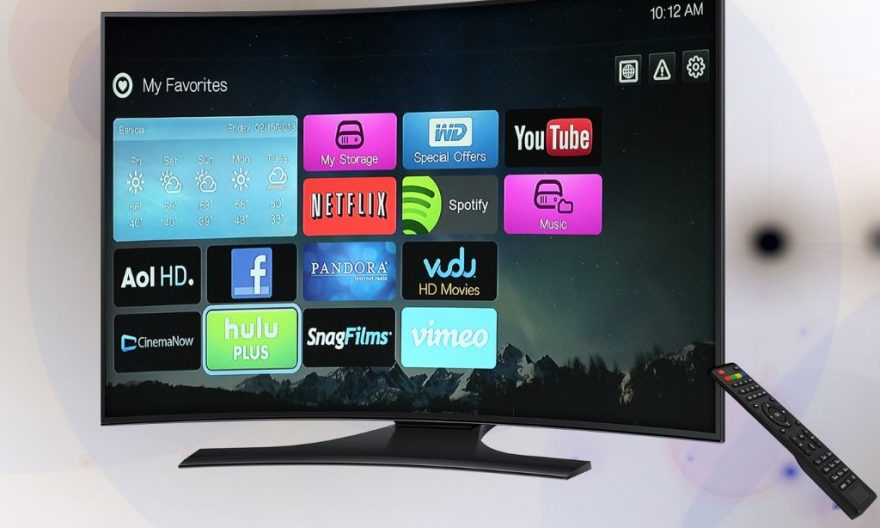
The LG Smart TVs use an operating system called WebOS, which is not compatible with the Google Play Store. Unlike TVs with Android TV, LG TVs cannot directly access Android apps via the Play Store. This can be frustrating for users accustomed to Google apps or the Android ecosystem. However, there are solutions to bypass this limitation and access Android services on your LG Smart TV.
Why is the Google Play Store not available on LG TVs?
LG TVs use WebOS, an in-house operating system developed by LG to provide a smooth and intuitive experience on their TVs. This system is completely different from Android TV, used by other brands such as Sony or Philips.
WebOS has its own app store called LG Content Store, which offers a number of popular apps like Netflix, YouTube, Amazon Prime Video, and many others.
However, unlike the Play Store, the offer is more limited, and Android-specific apps are not available. This is why it is impossible to directly install the Play Store on an LG TV.
Also read: Display port and HDMI: what are the differences between these two connectors
Solutions to use Android apps on an LG Smart TV
Fortunately, there are several solutions to bypass this limitation and access Android apps on your LG Smart TV.
1. Use an external Android device
The simplest solution is to connect a compatible Android device to your LG TV. Here are some options:
- Android TV Box: Devices like the Nvidia Shield TV, Xiaomi Mi Box, or even generic Android TV Boxes allow you to turn any TV into an Android TV. These boxes are equipped with the Google Play Store, giving you access to all available apps.
- Amazon Fire TV Stick: Although this device uses the FireOS system, it is based on Android and offers access to Android apps. With some tweaks, you can even install unofficial apps.
- Chromecast with Google TV: This HDMI stick combines the features of the classic Chromecast with a full Android TV interface, allowing you to directly install apps from the Play Store.
How to use them?
- Plug the device into an HDMI port on your LG Smart TV.
- Connect the device to the Internet via Wi-Fi or Ethernet.
- Follow the installation instructions.
- Access the Play Store via the external device and install your favorite apps.
2. Cast from an Android smartphone or tablet
If you do not want to invest in an external device, you can cast your apps directly from your smartphone or tablet.
Here’s how to proceed:
- Ensure that your TV and Android device are connected to the same Wi-Fi network.
- Open an app compatible with casting (like YouTube, Netflix, or Spotify).
- Tap the Cast or Broadcast icon.
- Select your LG Smart TV from the list of available devices.
- The content will then display on your TV.
💡 Tip: You can also use the Google Home app to cast the entire screen of your Android device to your TV.
3. Use the WebOS browser to access online services
If your main need is to access streaming or browsing services, the integrated WebOS browser can help you out.
- Launch the Web Browser app from your TV’s interface.
- Access online streaming sites or multimedia content platforms.
- Log in to your accounts to use the services directly via the browser.
Although this method is less convenient than a dedicated app, it allows you to watch videos or browse the Internet without adding additional hardware.
Also discover: Is using Atlas pro ontv legal or not?
4. Install an Android emulator on a PC and connect it to the TV
If you have a computer available, it is possible to install an Android emulator and connect it to your LG Smart TV.
- Download an Android emulator like BlueStacks, Nox Player, or MEmu on your PC.
- Install the Android apps of your choice via the Play Store integrated into the emulator.
- Connect your PC to your LG TV via an HDMI cable.
- Display the PC screen on the TV and use your apps directly from the computer.