
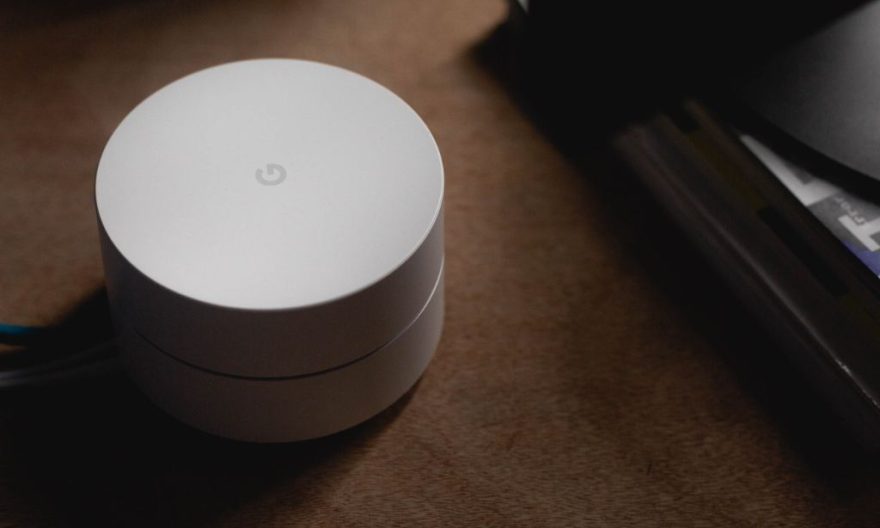
Google Assistant is a voice recognition technology that allows you to control many devices by voice. It simplifies daily life by controlling various equipment such as the television, lights, or heating. For Free subscribers, the association with Google Assistant offers an enhanced experience, especially on devices like the Freebox Pop or the Freebox Delta.
Associating these two systems allows access to advanced features, such as changing channels without a remote control or managing a connected environment remotely.
What to check before starting
Before starting the configuration, make sure all necessary elements are gathered:
✔ A compatible Free device, such as a recent Freebox.
✔ The Google Home app installed on your smartphone or tablet.
✔ An active Google account, essential for linking services.
✔ A stable Wi-Fi connection, with all devices connected to the same network.
Step-by-step configuration of your Freebox with Google Assistant
Before integrating Google Assistant, your Freebox must be properly configured:
1️⃣ Check Internet access: The connection must be active to allow synchronization with Google Assistant.
2️⃣ Activate the microphone on the Freebox remote control: On some models, this option allows using voice recognition directly via the remote control.
Associate Google Assistant
Once the Freebox is ready, it needs to be integrated with Google Assistant via Google Home:
1️⃣ Open Google Home on your smartphone or tablet.
2️⃣ Select “Add a device”, then choose “Works with Google”.
3️⃣ Search for “Free” in the list of compatible services.
4️⃣ Link your Freebox account by entering the associated credentials.
5️⃣ Follow the displayed instructions to complete the synchronization.
Advanced settings for a better experience
After the association, some options allow further customization:
🔹 Customize voice commands: Adjust the expressions used to control the television or other equipment.
🔹 Create smart routines: Define automatic actions, such as turning on the television at the same time as the living room light.
🔹 Manage multiple Free devices: If you own multiple devices, the app allows organizing their use based on rooms.
Examples of use with Google Assistant
Once the configuration is complete, it becomes possible to control your Freebox solely with your voice:
🗣 “OK Google, put on TF1” to change the channel.
🗣 “OK Google, increase the volume” to adjust the sound.
🗣 “OK Google, open Netflix” to launch an app.
In addition to television features, Google Assistant also integrates with compatible connected objects. It is then possible to turn off the lights, manage the heating, or activate a surveillance camera, without leaving your couch.
To fully enjoy the experience, a few recommendations:
✅ Place your connected speaker in a strategic location to capture voice commands without difficulty.
✅ Favor a stable Wi-Fi connection, especially if multiple devices are used simultaneously.
✅ Regularly update Google Home and the Freebox, to benefit from the latest improvements.
With these settings, Google Assistant transforms your Freebox into an even more practical tool, capable of interacting with your environment and simplifying your daily life.