
Some iPhone 13 mini users notice that the call volume remains low, even when set to maximum. This issue can make communication difficult and frustrating, especially during calls in noisy environments. In most cases, it is not a hardware defect, but a software setting or an obstruction of the microphone or speaker. Identifying possible causes allows for a quick resolution of this issue and improves call sound quality.
Why can the call volume of an iPhone 13 mini remain low even at maximum?
Several factors can affect the call volume on an iPhone.
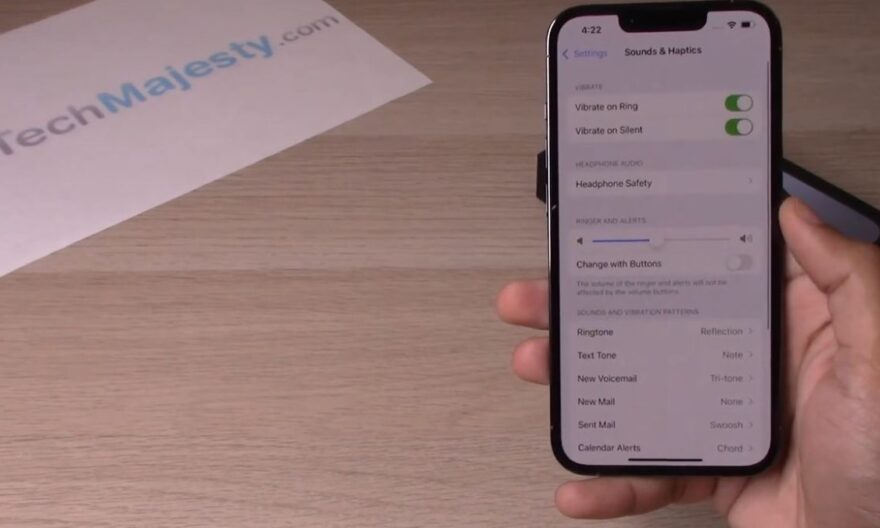
Volume settings
The maximum call volume does not always correspond to the phone’s maximum volume. iOS offers several options that influence the sound level:
• The call volume is distinct from the media volume and can be adjusted during a call using the side buttons
• Accessibility options like reducing loud sounds can limit the maximum volume
• Headphone and earphone settings can also alter the volume even in speaker mode
Checking these settings is the first step to ensure the issue is not related to a software limitation.
Noise cancellation feature
The iPhone 13 mini has a ambient noise reduction feature that can reduce certain sounds perceived during calls:
• The microphones analyze the surrounding noise and filter out non-vocal sounds
• In some cases, this feature can make your interlocutor’s voice less loud or muffled
• FaceTime calls and phone calls may react differently depending on the technology used
Disabling or adjusting this option can improve the perceived volume.
Speaker obstruction or dirt
The iPhone speaker can be obstructed by dust, debris, or an overly covering case.
• Even a small accumulation of dust can significantly reduce the sound
• A poorly designed case or cover can block the speaker openings
• Regular cleaning of the speaker and using a suitable case ensure clearer sound
Solutions to increase call volume
Several steps can correct this issue and optimize the sound.
Check and adjust call volume
During a call:
- Use the side buttons to increase the volume
- Ensure the Limit Loud Sounds option is disabled in Settings > Sounds & Haptics > Audio Safety
- Test in speaker mode to compare sound quality
This quick check ensures that the volume is not limited by iOS settings.
Disable noise reduction
To improve the clarity of your interlocutor’s voice:
- Go to Settings > Accessibility > Audio/Visual
- Disable Phone Noise Cancellation
- Test a new call to observe the difference
This feature can sometimes reduce the perceived volume, especially in a quiet environment.
Clean the speaker and remove the case
A physical inspection can resolve many issues:
• Check the main speaker located at the bottom of the iPhone
• Remove any covering case or cover
• Gently clean with a soft brush or dry cloth
These actions allow the sound to come out without obstruction and improve call volume.
Update iOS
Some iOS updates fix audio bugs:
- Go to Settings > General > Software Update
- Install the latest version available
- Restart the iPhone to apply the changes
Updates ensure optimal compatibility with all audio functions.
Reset settings
If the issue persists despite all checks:
- Go to Settings > General > Transfer or Reset iPhone > Reset
- Select Reset All Settings
- Personal data remains intact, but all settings are restored to default
This step often resolves software conflicts affecting the volume.
Additional checks
Some factors can influence call sound without being immediately visible:
• Bluetooth accessories: even disconnected, some devices may remain linked and alter the volume
• Third-party apps: recording or sound filtering apps can interfere with the volume
• Type of call: VoIP calls via certain apps may have a different volume than regular calls
Testing the sound in different contexts helps identify if the issue is specific to the app or hardware.